FORM Step
Overview
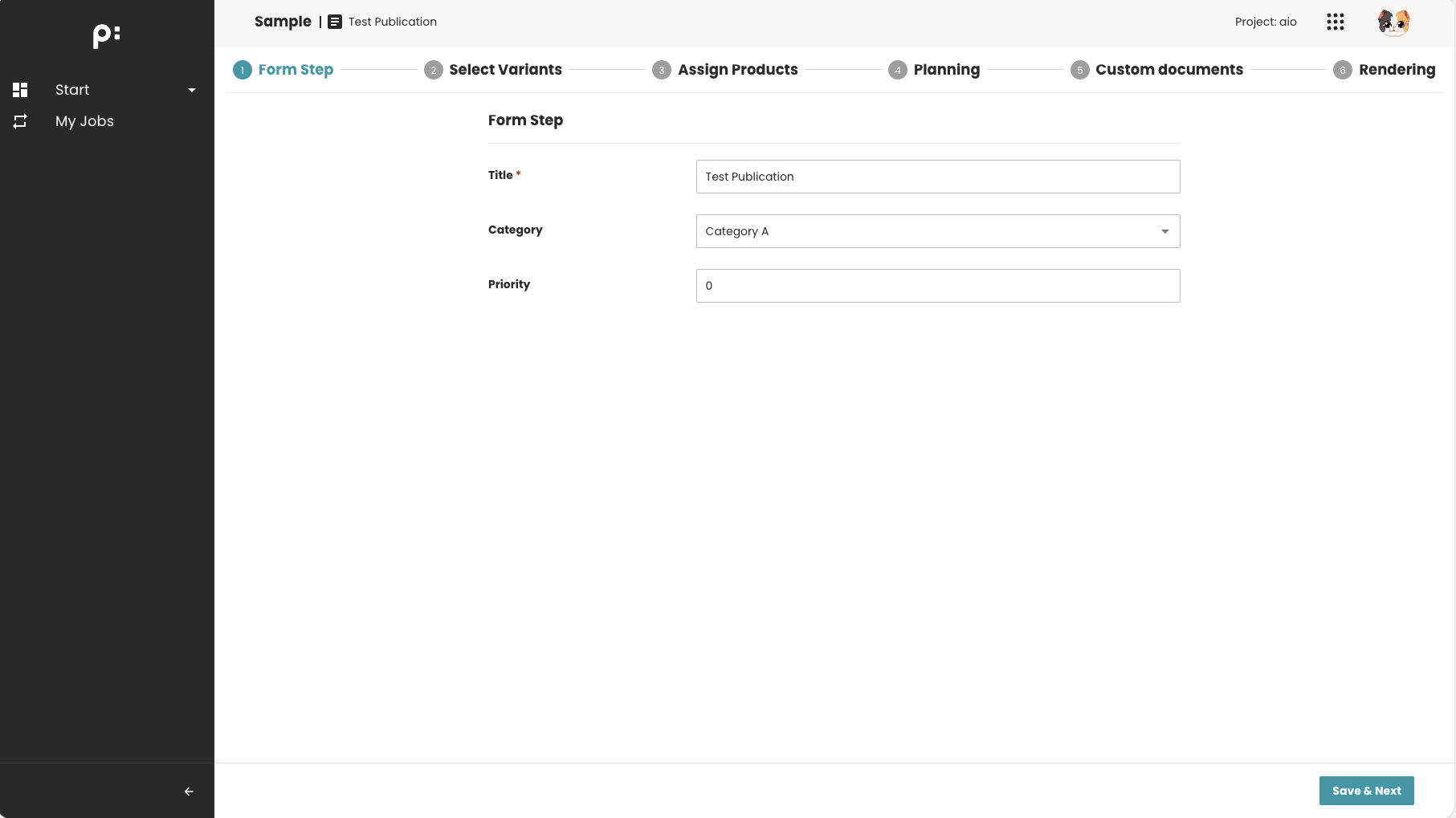
The FORM step displays a dynamic form that allows users to enter or update metadata for a publication. This step is commonly used at the beginning of a workflow to gather essential information before continuing.
The form layout and fields are fully configurable, making this step flexible for many different wizard scenarios.
When to Use This Step
Use the FORM step when you need to:
- Collect user input before performing a process
- Edit metadata associated with the publication
- Initialize or update workflow settings
Key Features
- Renders a customizable form based on configured Form Fields
- Supports both text inputs and more complex controls (dropdown, date, number, etc.)
- Automatically duplicates the publication if the starting point is a Template
- Optionally runs a backend process after duplication
- Ensures users complete mandatory fields before proceeding
Behavior Summary
-
In Template Mode The system duplicates the template publication. The recursive duplication can be controlled by a boolean flag. Form edits then apply to the newly created publication.
-
In Normal Mode The form directly edits the active publication’s metadata.
-
Metadata Updating Recursively flag The metadata updating could be triggered recursively to all level of the publication by a boolean flag.
-
Validation Required fields must be filled in. Invalid or missing values prevent saving the changes.
Execute a Background Process After Duplication
If the FORM step is configured as the first step of the wizard, a Priint BPM process can be executed automatically in the background after the publication is duplicated from the template (during the initial save).
This behavior is controlled by the following optional parameter:
<parameter id="duplicate_post_process">INIT_PROCESS</parameter>
- The parameter value must be the process definition identifier/key of the Priint BPM process to execute after the publication has been duplicated from the template.
- If this parameter is not configured, no background process is executed.
- You can also customize the process execution (for example, start parameters or execution messages) by configuring the corresponding process element in the
processessection. For more information, see the Process documentation.
This feature is only supported when the FORM step is configured as the first step of the wizard and only during the first save operation. This is because the template publication is duplicated only when the user saves the first step for the first time.
The FORM step can still be used at any position in the wizard to allow users to edit publication metadata. However, the background process is triggered only during the initial template duplication.
Sample Configuration
<wizardSteps>
  <wizardStep id="form_step">
    <label>Form Step</label>
    <type>FORM</type>
    <status>form_status</status>
    <required>true</required>
    <parameters>
      <!-- Form fields -->
      <parameter id="title" key="form_field"/>
      <parameter id="category" key="form_field"/>
      <parameter id="priority" key="form_field"/>

      <!-- Optional post-duplication process -->
      <parameter id="duplicate_post_process">INIT_PROCESS</parameter>
    </parameters>
  </wizardStep>
</wizardSteps>

<formFields>
  <formField id="title">
    <label>Title</label>
    <type>text</type>
    <required>true</required>
    <propertyAttribute>name</propertyAttribute>
  </formField>

  <formField id="category">
    <label>Category</label>
    <type>select</type>
    <selection>category_selection</selection>
    <metadata>category</metadata>
  </formField>

  <formField id="priority">
    <label>Priority</label>
    <type>number</type>
    <metadata>priority</metadata>
  </formField>
</formFields>

<processes>
    <process key="INIT_PROCESS">
      ...
    </process>
</processes>
Sample Screenshots
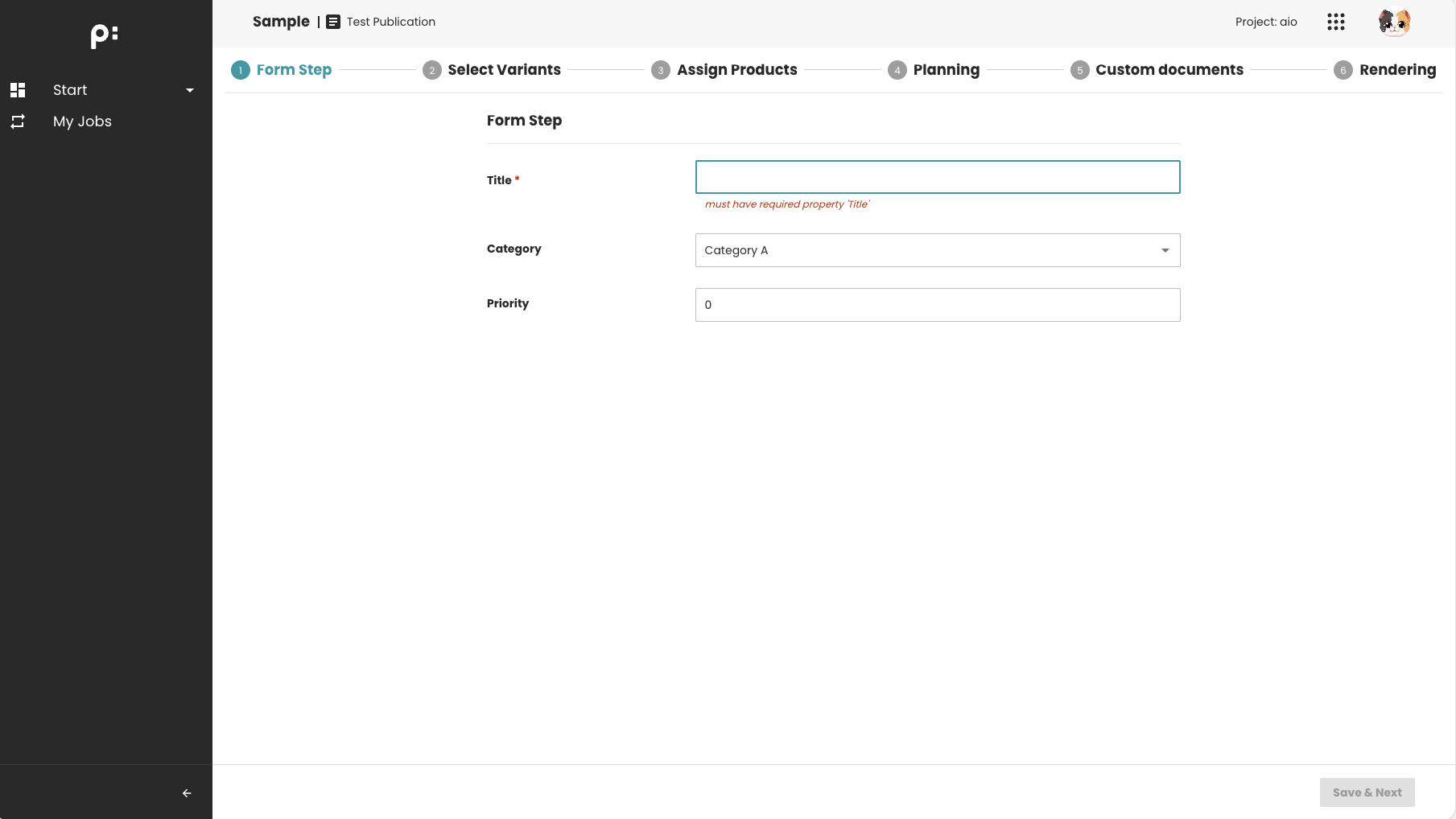
The Form is invalid: the required field is empty ->
Savebutton is disabled.
The required field is filled ->
Savebutton is enabled.
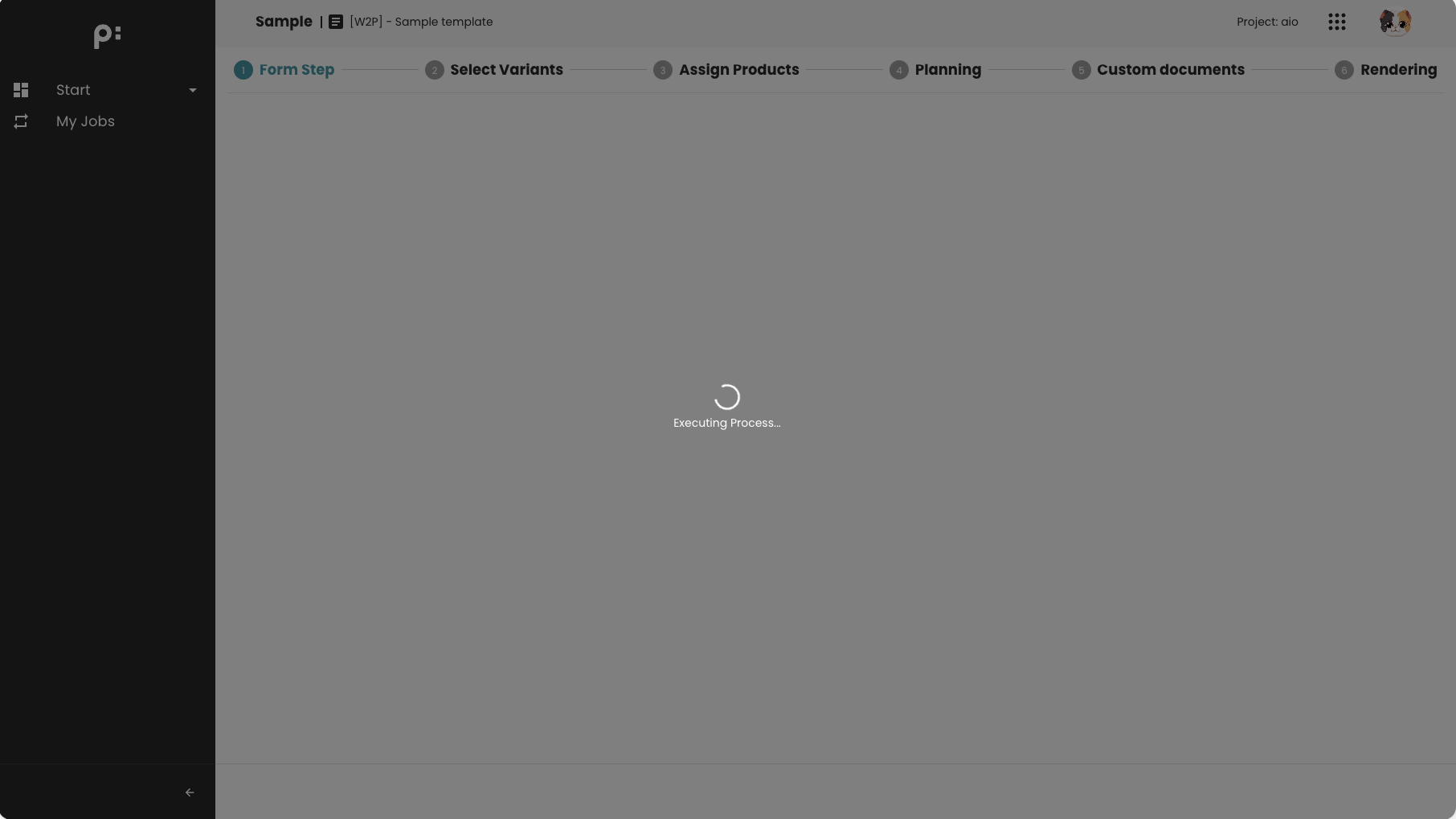
After the publication, a process can be executed for some background tasks (optional)
Notes
- Define form field settings in
<formFields>to ensure proper rendering. - Ordering of
<parameter key="form_field">determines the order in the UI.